Search This Blog Below

Today Cosplay
Cosplayer
Showing posts with label Photoshop Tutorial. Show all posts

Wednesday, November 3, 2010

Transparent Glass Style


Tutorial Description

Platform: Adobe Photoshop CS or better
Difficulty: Beginner
Author: Vebyo Arson

Download Source Files
Transparent Glass Style

People love glass effects. They also love transparent look, glowing and glossy as well. Now, we will learn how to make these popular effects. Less than 1 minute, you can get this Transparent Glass Style in Photoshop. Let's get started!

Step 1

Open any image in Photoshop. I recommended to open full color image or the real photo (not abstract) but it's up to you after all ^^.

Straw Field

Step 2

Use Horizontal Type Tool (T) and write any text you want. In this tutorial I used white color (#FFFFFF), 72pt for size, and Gill Sans Ultra Bold for font.
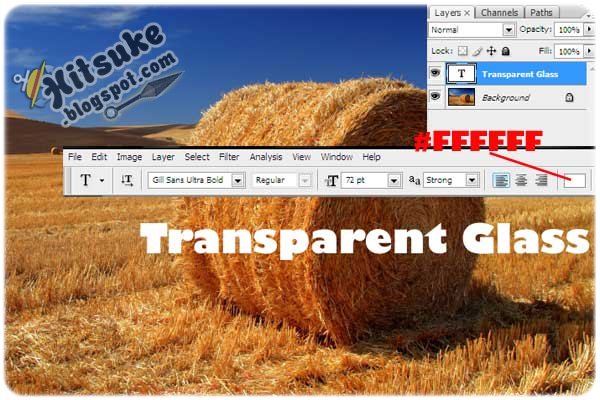
Transparent Glass

Step 3

Apply the following Layer Style to the "Transparent Glass" Text Layer (Double Click on it or go to Layer > Layer Style > Blending Options...).
Blending Options: Custom – Set Fill Opacity to 20% under Advanced Blending
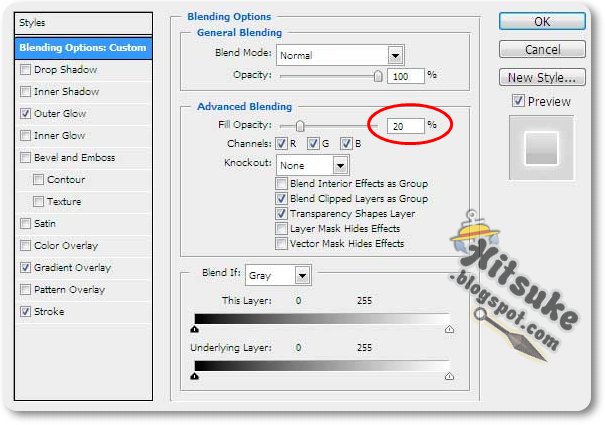
Transparent Glass Blending Options

Outer Glow: You may change outer glow setting if you want to.

Transparent Glass Outer Glow

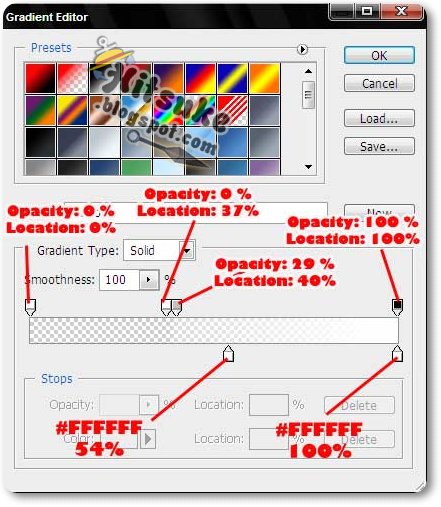
Gradient Overlay: This is the crucial part of this step. Don't miss it!

Gradient Overlay
Transparent Glass Style Gradient

Stroke: I used standard stroke here. White (#FFFFFF) for color, 3px for size in outside position and 100% for opacity.

Transparent Glass

Step 4

Look what should you get now ...A Transparent Glass Style Effect.

Transparent Glass Style

If you take a look closer, it will be like the following image. It's so cool, isn't it?

Transparent Glass Closer

You may also change the color of the text if you like

Transparent Glass Change Color


Final Result

Transparent Glass Style
PSD Download Download PSD 3.04 Mb
Local | Indowebster | 4shared | RapidShare | Ziddu

Saturday, October 9, 2010

Create Psychology Sticker

How to Create a Psychology STicker

Do you know why I make a psychology sticker even I an english student? the answer is when I was studying at english department my friend at psycholog faculty asked me to make it for her. So, I tried to do it although this is the first time I made a Sticker. Here you are

Psychology_Sticker


Follow this step to know how to make it

Step 1 : Open new document 800x600 px fill it with black color. I use Pastor of Muppets font that I get from Here. Type the text in separeted


Psychology_Sticker


Step 2 : Add layer style at one of it

Gradient Overlay

Psychology_Sticker


Stroke

Psychology_Sticker


and here is our result in this step


Psychology_Sticker


Step 3 : Copy the layer style and Paste to All of the font that you have created before


Psychology_Sticker


Step 4 : Create New Layer to make a border around it. You can use whether Pen Tool or Brush Tool that is up to easy for you. In this Tutorial I use Brush tool with White color.


Psychology_Sticker


Step 5 : Add layer Style to that border by Double-Click on it > Set the Outer Glow


Psychology_Sticker


Step 6 : To make your border and text in balance color, add the color balance just like this


Psychology_Sticker


here is my result at this moment

Psychology_Sticker


Step 7 : Add Shock Text Effect to the Text Layer

Final Result

Psychology_Sticker

Created by Hitsuke.blogspot.com

Powered by Bluecryztal.blogspot.com


Blue crystal Shock Text

Create Blue crystal Shock Text

Blue Crystal Shock Text

Step 1 : Create a 400x400px document, fill your background with black by choosing Edit > Fill and use Black


Step 2 : Select Horizontal Type Tool(T) and use white color to write anything you want, like this:

Blue Crystal Shock Text


Step 3 : Now right click on the "text layer" and choose "Rasterize Type" to make it become a real layer

Blue Crystal Shock Text


Step 4: Duplicate that layer by right click again on it,select "Duplicate Layer" or you can press shortcut key Ctrl + J, press OK. Now we have two text layer.

Step 5 : Select the Duplicate layer and set Filter > Stylize > Wind and click on "From the Left" option

Blue Crystal Shock Text

Step 6 : Press Ctrl-F twice to make this effect stronger

Step 7 : Now selct Filter > Stylize > Wind again, but we click on "From the Right" option

Step 8 : Again, press Ctrl-F twice to make it stronger! Here is my image at this time:

Blue Crystal Shock Text


Step 9 : Select Image > Rotate Canvas >90 o CW to rotate our image

Blue Crystal Shock Text


Step 10 : Now use the Wind Effect (repeat from step 5 to 8), here is my result for this step

Blue Crystal Shock Text


Step 11 : select Image > Rotate Canvas >90 o CCW to rotate it to normal state:

Blue Crystal Shock Text


Step 12 : Now right click on current layer, select "Layer Properties" (or simply double click on that layer). In "Layer Style" box, choose "Color Overlay" and choose blue (#01a6fb) color:

Blue Crystal Shock Text

Step 13 : Select your original layer and move it to Top.

Blue Crystal Shock Text

and that will become like this

Blue Crystal Shock Text

pay attention to its position. the original layer become the top of layer.

Step 14 :

Now you can see our result

Blue Crystal Shock Text

Step 15 : This is will be different from my last tutor Red Shock text.

Double click at Top Layer or your original layer and set the style become like this

  • Drop Shadow

Blue Crystal Shock Text

  • Gradient Overlay

Maybe it need some practice to try.

Blue Crystal Shock Text

make sure your setting same as the picture above.

  • Storke

Blue Crystal Shock Text

Well done. Here is My Final Result.

Blue Crystal Shock Text

Created by Hitsuke

powered by Green Arson

http://bluecryztal.blogspot.com


Wednesday, September 15, 2010

Add a Cool Style to Photo Captions


Tutorial Description

Platform : Adobe Photoshop CS+
Difficulty : Beginner
Author : Vebyo Arson

Download Source Files


In this Quick Tip tutorial, I will demonstrate how to add a cool style to photo captions by creating a frosted glass-like text bar almost like Windows aero effect that can improve the look of your photos or designs.

Step 1

Open up any image in Photoshop. I used a forest photo. You can use a similar one if you like. Otherwise, any image will do. Unlock the background layer by Double-Clicking on the layer, name it "Forest".

Cool Caption Style

Step 2

Create a new layer (Ctrl + Shift + N) on top of the "Forest" layer, and call it "Frosted Bar". Using the Rectangle Marquee tool (M) making sure you’re on the Frosted Bar layer, drag out a selection of the bar size that you desire, making sure it touches both sides of the document. The placement of the bar is up to you; in my case I am putting it down at the bottom of the image as shown.

Cool Caption Style Effect 2

Step 3

Fill in the selection using the Paint Bucket tool (G) with white (#FFFFFF) and deselect the current selection (Ctrl + D).


Cool captions Style 03

Step 4

Apply the following layer styles to the "Frosted Bar" Layer (Double Click on "Frosted Bar" layer).
Blending Options: Custom – Set Fill Opacity to 20% under Advanced Blending

Cool Caption 04

Stroke: Using white (#FFFFFF) with size set to 2 and position outside and 50% opacity.

Cool Caption Style 05

Step 5

We will need to edit our original image so it’s best to make a duplicate copy so we can always reverse it. So with the "Forest" layer selected duplicate it (Ctrl + J). With the "Forest copy" layer selected, load the frosted bar selection again by Ctrl + clicking the Frosted Bar layer icon. Apply a Gaussian Blur (Filter > Blur > Gaussian Blur) input 8 as the radius and click OK.

Cool Photo Captions Style 06

Step 6

With the basis of our frosted bar created, we can now apply highlights. Create a new layer (Ctrl + Shift + N) on top of the Frosted Bar layer, and call it "Highlights". Load the Frosted Bar selection again if you have not got it already selected, and select the Brush tool (B). Using a large soft brush (500px, no hardness and White as the colour: #FFFFFF) paint highlights in the middle of the bar, both on top and below (as seen below), finally drop the opacity down of the "Highlight" layer to 60%.

Cool Caption Photos Effect 07

Cool Caption Photos Effect 08

Step 7

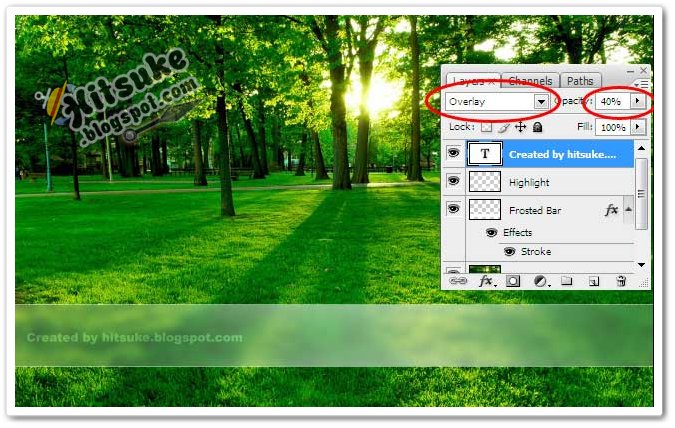
Our final step is to add text. Using the Text tool (T) add whatever text you want within the bar at whatever size suits you (In our case out font size is 24px). Drop the opacity down to 40% on the text, and change the blending mode to Overlay, and that’s it.

Cool Caption Text Photo Effect 08a


Final Result

Take a look at the final image. Hope you enjoyed the tutorial!

Cool Caption photos Style final image


PSD Download Download PSD 3.76 Mb
Local | Indowebster | 4shared | RapidShare | Ziddu